
Know Your Wellmark Tools
You have several tools available through Wellmark—but knowing which tool to use and when to use it can make them much more valuable.
Whether you're looking for a doctor, preparing for an appointment, comparing costs, filling a prescription or reviewing a recent claim, your Wellmark tools can help.
Use this page to learn when to use each tool and how to get started.

myWellmark
Your starting point for managing your health plan online.
MyWellmark gives you personalized access to your health plan information and many of the tools described on this page.
| When should I use it? | How do I use it? |
|---|---|
Use myWellmark when you want to:
|
|
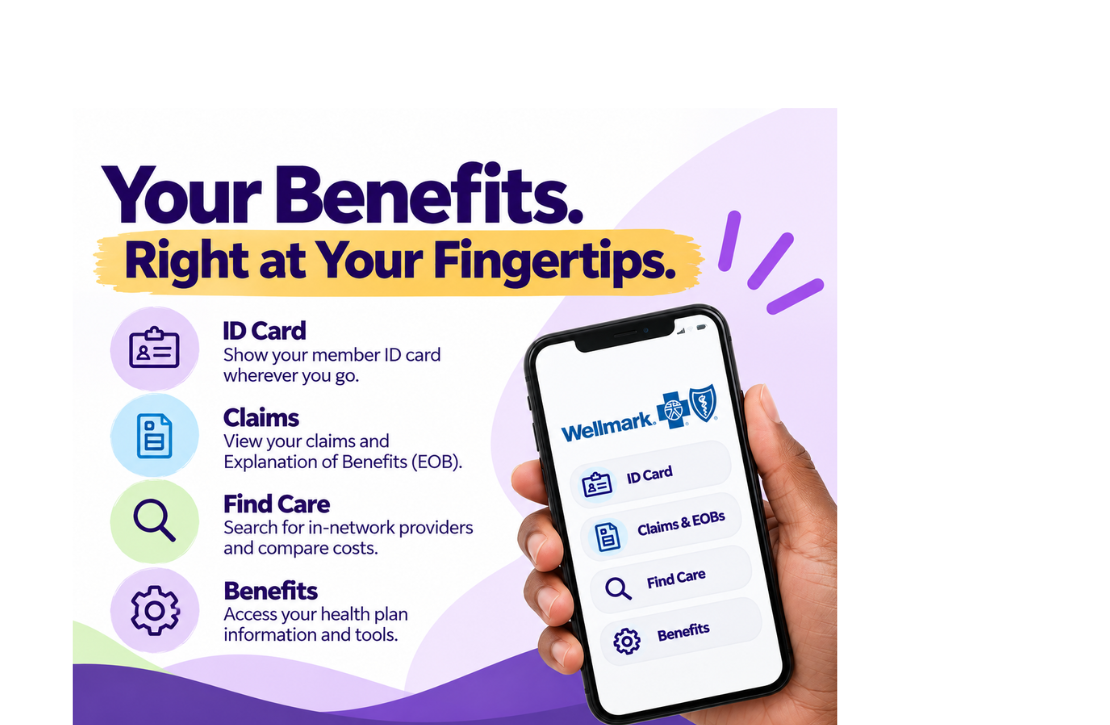
myWellmark Mobile App
Take your health plan information with you.
The myWellmark app gives you convenient access to many myWellmark features from your phone.
Tip: Download and set up the app before you need it.
| When should I use it? | How do I use it? |
|---|---|
The app is especially useful when:
|
|
Find Care
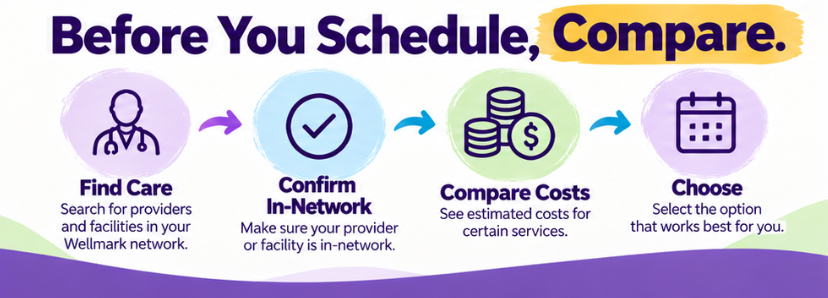
Find care and compare your options before you schedule.
Care Finder can help you locate providers and facilities that participate in your Wellmark network and compare options for certain health care services.
Tip: Don't assume every location charges the same amount for the same service. If you have time to plan your care, compare your options first.
| When should I use it? | How do I use it? |
|---|---|
Use Care Finder before:
|
|
Compare Costs
Know more before you fill your prescription or have medical services done.
Wellmark's cost tool can help you understand coverage and costs for your medications and services.
| When should I use it? | How do I use it? |
|---|---|
Consider checking your prescription information:
|
|
BlueRx Value Plus℠ Drug List
Check whether your medication is covered.
The BlueRx Value Plus℠ Drug List identifies covered medications and provides important information about prescription coverage.
| When should I use it? | How do I use it? |
|---|---|
Use the drug list when:
|
|

An Explanation of Benefits is not a bill. It explains how a health care claim was processed.
Tip: Check your EOB after receiving health care services to see just how much your UNI health plan pays toward your care. You may be surprised by the value of your benefits!
| When should I use it? | How do I use it? |
|---|---|
|
|
Mail Service Prescriptions
A convenient option for certain ongoing medications.
Mail service may be available for eligible medications you take regularly.
| When should I use it? | How do I use it? |
|---|---|
| Consider mail service if you take an eligible maintenance medication on an ongoing basis and would prefer to have it delivered. | Review Wellmark's mail service information to determine whether your medication is eligible and how to transfer or submit your prescription. |
Specialty Medications
Know where and how to obtain specialty prescriptions.
Specialty medications may have different ordering, authorization and delivery requirements than prescriptions filled at a traditional retail pharmacy.
| When should I use it? | How do I use it? |
|---|---|
| Use this information if your provider prescribes a specialty medication or tells you that your prescription needs to be filled through a specialty pharmacy. | Review Wellmark's specialty drug information for instructions on coverage, ordering and delivery. Contact Wellmark if you need assistance understanding the requirements for your medication. |
Blue365®
Explore discounts available with your Wellmark coverage.
Blue365 provides access to discounts on certain health and wellness products and services.
| When should I use it? | How do I use it? |
|---|---|
Check Blue365 before purchasing eligible health and wellness products or services, such as:
| Access Blue365 through Wellmark, browse available offers and follow the instructions for the discount you want to use. |
Make Your Wellmark Tools Work for You
You don't have to wait until you have a claim or a problem to use these resources.
- Before care: Find an in-network provider and compare your options.
- Before filling a prescription: Check coverage and cost.
- When you're on the go: Use the Wellmark app.
- After receiving care: Review your EOB and see what you and the plan paid.
The more familiar you are with these tools, the easier it is to use your benefits when you need them.


Wherever conflicts occur between the contents of this site and the contracts, rules, regulations, or laws governing the administration of the various programs, the terms set forth in the various program contracts, rules, regulations, or laws shall prevail. Space does not permit listing all limitations and exclusions that apply to each plan. Before using your benefits, review the plan's coverage manual. Benefits provided can be changed at any time without the consent of participants.