
HRS Online Forms
Human Resource Services utilizes online forms to complement existing UNI Works processes. At UNI, there are unique approval workflows within departments. Those approving forms will be notified through their UNI email.
UNI Employees can go to https://hrs.forms.uni.edu to approve a form. System prompts during entry follow the application’s built-in software settings. The University has limited design control over on-screen system prompts and alerts.
For assistance in completing a form or approving a form, please read below. If additional assistance is needed, contact hris-support@uni.edu.
General Form Instructions
Refer to the information below on general usage of the online forms and best practices.
- Form Email Notifications
- Employees will receive an email when action is required. For example, approving a form.
- Email notifications will be sent from:
"UNI HRS Automated Workflow Message <noreply@formresponse.com>". - Carefully read each email as the instructions will change based on your role.
- Those who do not take immediate action will receive an email reminder three times over the next nine days.
- Form Print Options
- During the workflow process, those approving the form can click the Print button or the Download button to print an unformatted version of the form.
- Once the form is in completed status, in most cases, the form preparer will receive an email from Human Resource Services with the official signed document.
- Accessing Forms
- To start a form, locate the form within the HRS website or within the UNI Forms Repository. NOTE: Not all forms are online.
- While completing a form, the preparer may be able to select Save and Continue Later button to save their progress. If this option is available, the preparer will receive an email containing a link to return to the saved draft. NOTE: Save and Continue Later is not available on all forms and can only be used before a form has been submitted.
- Approving a Form
- Approvers will receive an email when action is needed.
- Approvers can also access https://hrs.forms.uni.edu and click on the Waiting For Me tab.
- Carefully review the form submission before selecting an approval outcome. If providing a comment, enter the comment first before clicking the approval outcome, as approvers cannot enter a comment once an approval has been completed.
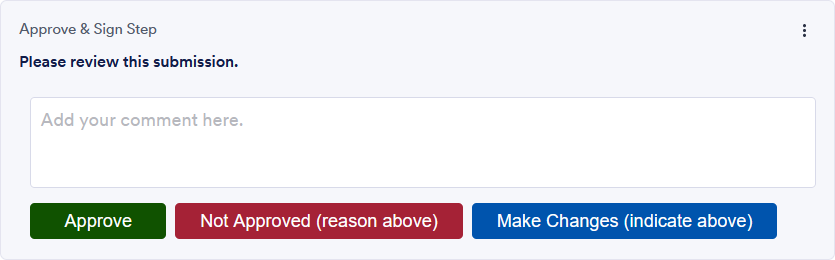
- After approving, wait 5 seconds before exiting the approval inbox window in your web browser.
- Workflow Updates
- Workflows within HRS online forms may vary based on the form and type of request. If an error or issue is encountered with the workflow, contact hris-support@uni.edu.
Basic Troubleshooting
Please try these basic troubleshooting solutions if a form is loading slowly, freezing, or not displaying correctly.
- Clear Your Web Browser's Cache
- If the forms are appearing oddly, consider clearing your web browser's cache.
- Additional Web Browser Help.
- Private Web Browsing
- If you are having issues accessing the forms system, try viewing the form in a "private" (i.e., incognito window) window.
- Additional Web Browser Help.
- No Submissions Visible in Approval Inbox
Users who recently approved or viewed a form, may receive an error message when clicking on a link within a form email notification.
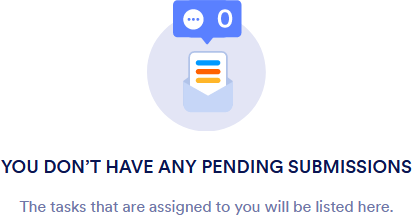
- Refresh the Inbox Tab (Option 1)
- Refresh the Inbox by clicking once on the Inbox tab or Sentbox tab.

- Then click back on the Waiting For Me tab. The new form will now appear in the Waiting For Me tab.
- Refresh the Inbox by clicking once on the Inbox tab or Sentbox tab.
- Check for Incorrect Email Addresses (Option 2)
When completing forms, users are directed to use email addresses as they appear in the UNI Works. If the wrong email address is used (i.e., a UNI email alias is used instead of the primary email address), the system will not recognize that the approver has a form to approve. The error message will be the same as above, but the approver could see additional tabs.
Email hris-support@uni.edu and request the form be rejected. Please contact the form preparer to share the form is being rejected and the correct/primary email address needs to be used.
- Search by the Employee’s Last Name (Option 3)
If the email addresses are correct but the submission does not appear in the approval inbox, enter the last name of the employee as it appears in UNI Works. If the submission still does not populate, email hris-support@uni.edu for additional support.
- Refresh the Inbox Tab (Option 1)
- Email Notification Does Not Show in Email Inbox
- Check Spam or Junk Folders
When you do not receive a notification in your email inbox, there is a chance the email was routed to your spam/junk folder. Search those email folders for the notification, and mark it as “Not Spam” for future emails. - Contact HRIS to Resend the Email
If you do not find the email notification in your spam or junk folder, contact hris-support@uni.edu and request to have the email resent to your UNI email address.
- Check Spam or Junk Folders

